Getting Started
Prerequisites
You will need a GitLab account if you don’t already have one you can register Here. After you have a an account go to the Bless Online Docs gitlab page and click on the Fork button.
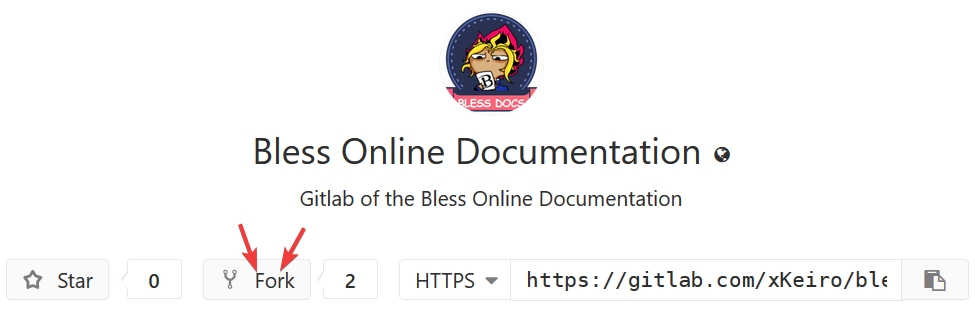
After that just follow the instructions shown. When the fork completed go to
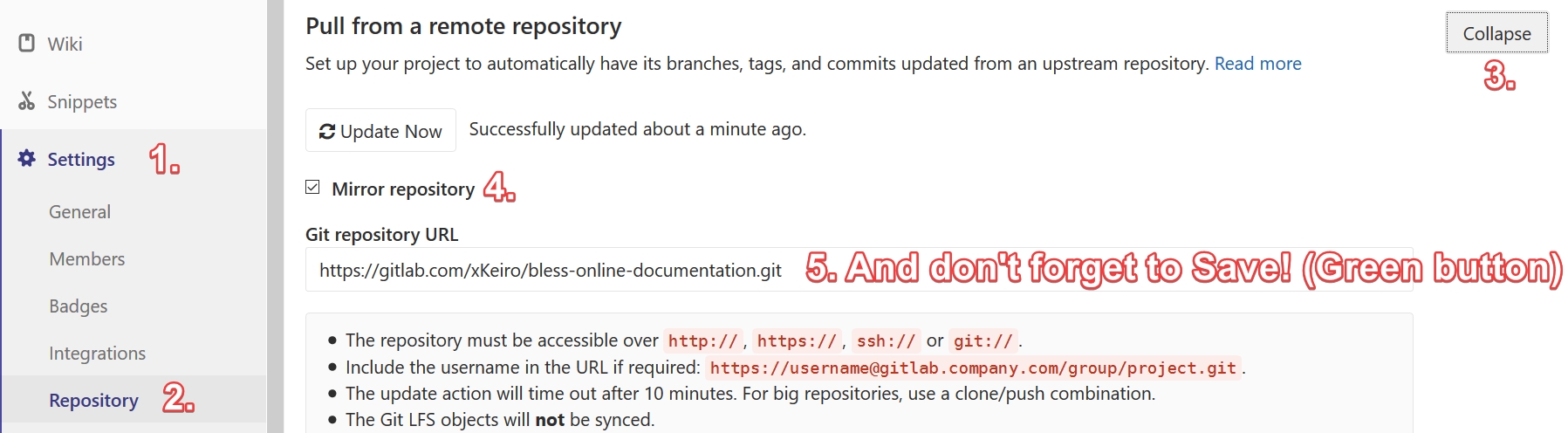
Settings-> Repository-> Pull from a remote repository. Click on Expand,
tick the Mirror repository box and write https://gitlab.com/xKeiro/bless-online-documentation.git
to the Git repository URL field. You don’t have to change anything else, go ahead and click on the
Save Changes button. This ensures that your version of the documentation stays up to date.
Congratulations now you are finally ready to contribute to the docs!
Your first contribution
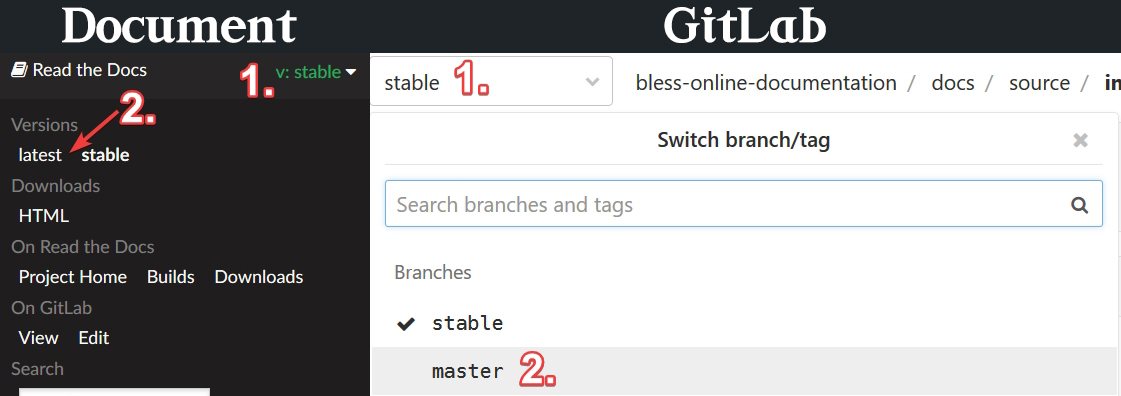
Find a topic you are interested in and would like to add something to it, and then let’s make sure that you are on the latest version of the document you wish to edit. You can do this by looking at the bottom left of the documentation. Change the v:stable to latest. (Or if you’d lke to, you can change the branches on Gitlab instead, from stable to master.)
Next, click on the Edit on GitLab button at the top right corner of the page.

Once you are on GitLab you can see the content of the selected article, a few things may appear differently since we use reStructuredText (and not Markdown) for formatting for the docs, but more on this later. For now just click on either Edit or Web IDE to start editing.
Warning
Make sure that you are on the “master” branch before hitting Edit as mentioned before.

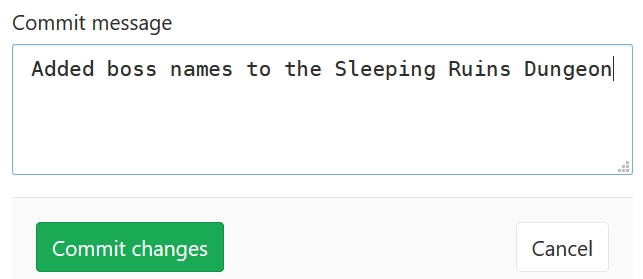
Here you’ll be able to edit/add what you wanted, once you done write a short summary about what you changed to the Commit message field and press the Commit Changes button.
After this click on the the Submit merge request button. (Optionally: tick the “Allow edits from maintainers”)

Congratulations you just made your first contribution to the project! All you have to do now is wait until somebody approves your edits.